Primary Key - Exercise Result
What you should have completed
In this exercise, you created primary keys in two tables using two different approaches: (1) selecting an existing field as a primary key in the Clients table, and (2) adding a new AutoNumber primary key field in the Projects table.
Result 1: Clients table primary key
You should have opened the Clients table in Design View and set the Company field as the primary key by selecting the field row and clicking the Primary Key (key icon) button.
When the primary key is set, Access displays a key icon next to the Company field. If Access warned you about duplicates or blank values, you would need to fix those issues before the key can be enforced.
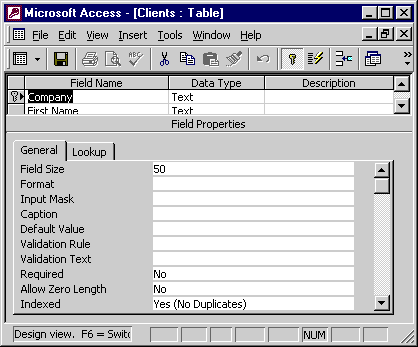
Result 2: Projects table AutoNumber primary key
You should have opened the Projects table in Design View and created a new field named Project ID with the data type set to AutoNumber. Then you set Project ID as the primary key.
Best practice is to place the primary key as the first field in the table. If you added Project ID at the bottom, you would typically move it to the top of the field list after defining it.
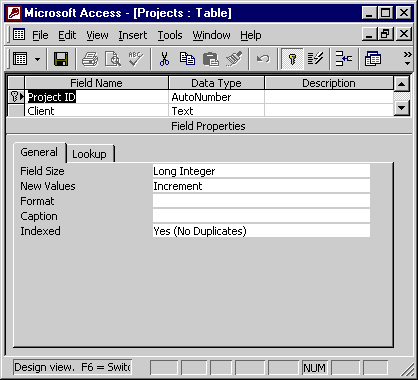
Verify in Datasheet View
If you switch the Projects table to Datasheet View, the new Project ID field should contain automatically generated values. You do not type these values—Access assigns them when records are created.
If your work matches the exercise requirements, your Projects datasheet should look similar to the following example:
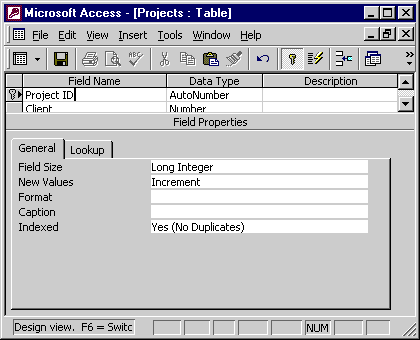
Summary checklist
- Clients: Company is set as the primary key (key icon visible in Design View).
- Projects: Project ID field exists, is AutoNumber, and is set as the primary key.
- Projects datasheet: Project ID values are generated automatically.