| Lesson 5 | Monitoring locks with SSMS |
| Objective | Monitor SQL Server locks using SQL Server Management Studio. |
Monitoring Locks with SSMS
SQL Enterprise Manager (SQL-EM), the old graphical tool for browsing locks by process or by object, was retired years ago. It was replaced first by SQL Server Management Studio, and now, in SQL Server 2025, by SSMS 22. Reaching SQL-EM's lock display used to mean navigating a specific tree: select the server group, select the server, select Management, select Current Activity, then choose either Locks by Process ID or Locks by Object. None of that navigation exists anymore, and there is no direct one-for-one replacement for it either. Instead, SSMS spreads the same job across a few purpose-built tools: Activity Monitor for a live overview, the Blocking Transactions standard report for a graphical view of who is blocking whom, and, for anything more precise, a direct query against
sys.dm_tran_locks, the DMV covered in the previous lesson.
Activity Monitor: The Starting Point
Activity Monitor's Processes pane, covered two lessons ago, remains the fastest way to spot that locking is a problem. Its
Activity Monitor's Resource Waits pane adds a second, complementary view. Rather than listing sessions, it groups cumulative wait time on the instance into categories, one of which is Lock, so it answers a different question than the Processes pane does. The Processes pane answers "which session is blocked right now." The Resource Waits pane answers "how much of this instance's time, overall, is going to lock waits compared to everything else: CPU, memory, I/O, and so on." A Lock category that sits consistently near the top of that list over a day or a week is a sign that lock contention is a recurring issue on the instance, not just a one-off blocked session that happened to get caught while someone was watching.
As with every Activity Monitor pane, this view requires
Blocked By column and LCK_* wait types flag it immediately, the same way the earlier sessions 61, 62, and 63 scenario made session 62's suspended status easy to connect to session 61 the moment its Blocked By column pointed there. Opening Activity Monitor still takes the same three steps covered previously: connect Object Explorer to the instance, right-click the server and choose Activity Monitor (or press Ctrl+Alt+A), and let the Processes pane expand by default.
Activity Monitor's Resource Waits pane adds a second, complementary view. Rather than listing sessions, it groups cumulative wait time on the instance into categories, one of which is Lock, so it answers a different question than the Processes pane does. The Processes pane answers "which session is blocked right now." The Resource Waits pane answers "how much of this instance's time, overall, is going to lock waits compared to everything else: CPU, memory, I/O, and so on." A Lock category that sits consistently near the top of that list over a day or a week is a sign that lock contention is a recurring issue on the instance, not just a one-off blocked session that happened to get caught while someone was watching.
As with every Activity Monitor pane, this view requires
VIEW SERVER STATE permission on the instance, the same permission the previous two lessons' DMV queries also depend on. A login without it will see Activity Monitor open but largely empty, which is a common source of confusion for anyone new to monitoring who assumes the tool itself is broken rather than the permission being missing.
The Blocking Transactions Standard Report
For a genuinely graphical view of blocking, the closest thing in modern SSMS to SQL-EM's old lock diagrams is the Activity - All Blocking Transactions standard report.
- Right-click the server, or a specific database, in Object Explorer.
- Choose Reports > Standard Reports > Activity - All Blocking Transactions.
- SSMS draws the blocking chain as a tree: the head blocker at the top, every session it is blocking nested beneath it.
- Each node in the tree shows the session ID, wait time, and wait type for that session.
blk columns one row at a time does not. It is the single best place to start when a blocking problem has already grown past a simple two-session case.
sys.dm_tran_locks query both surface.Reading Mode and Status
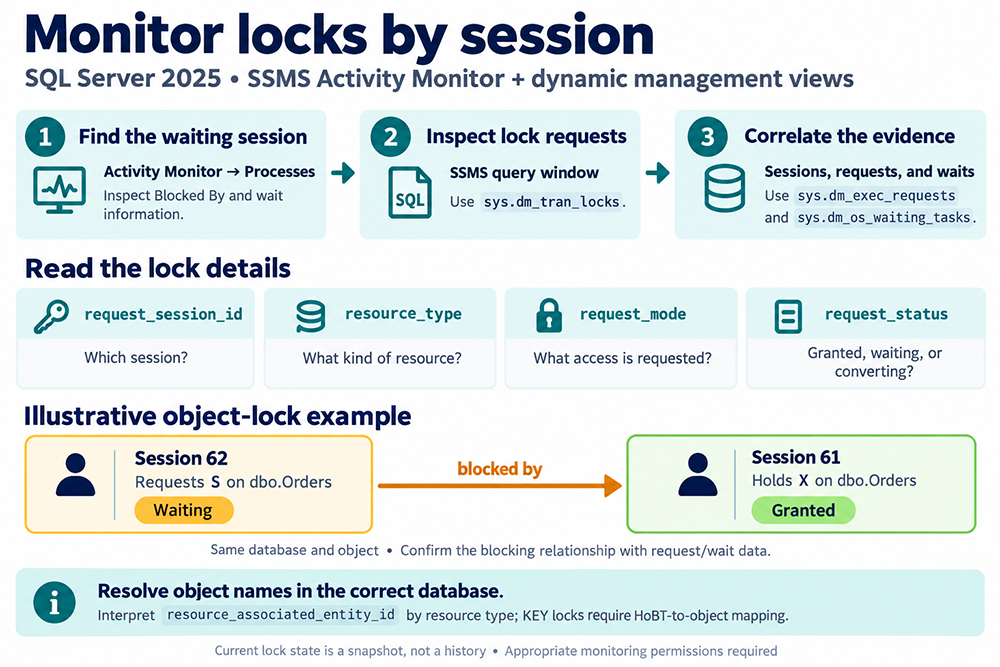
Whichever of these three tools surfaces a lock, two pieces of information matter most: what mode it is held in, and what status it is in. These are exactly the
Mode describes the kind of access the lock grants: Shared for reads, Update as a transitional mode used before converting to Exclusive, Exclusive for modifications, one of the Intent modes signaling a hierarchy of locks above the actual resource, Schema for DDL-related locking, or Bulk Update for bulk load operations using
Status describes where the lock currently stands: GRANT means the lock has actually been acquired, WAIT means it has been requested but not yet granted, and CNVT means an already-granted lock is in the process of being converted to a different, usually stronger, mode. A session showing CNVT status is a useful detail to notice specifically, since it means the session already holds some form of access and is waiting only to upgrade it, which is a different, and sometimes more easily resolved, situation than a session waiting on a lock it does not hold at all.
This particular vocabulary, GRANT, WAIT, and CNVT, along with the Shared, Update, Exclusive, Intent, Schema, and Bulk Update mode names, is one of the few pieces of this lesson that has not actually changed since SQL-EM's era. The tools used to view it have been replaced twice over, first by SSMS and now by SSMS 22, but the underlying concepts a DBA needs to reason about a lock have stayed remarkably stable.
request_mode and request_status columns from the previous lesson's sys.dm_tran_locks coverage, and the Blocking Transactions report's node details and the request details pane behind a double-click in Activity Monitor both ultimately surface the same two values, just through a GUI instead of a query result set.
Mode describes the kind of access the lock grants: Shared for reads, Update as a transitional mode used before converting to Exclusive, Exclusive for modifications, one of the Intent modes signaling a hierarchy of locks above the actual resource, Schema for DDL-related locking, or Bulk Update for bulk load operations using
TABLOCK. A lock can also appear as a combination of these rather than a single pure mode.
Status describes where the lock currently stands: GRANT means the lock has actually been acquired, WAIT means it has been requested but not yet granted, and CNVT means an already-granted lock is in the process of being converted to a different, usually stronger, mode. A session showing CNVT status is a useful detail to notice specifically, since it means the session already holds some form of access and is waiting only to upgrade it, which is a different, and sometimes more easily resolved, situation than a session waiting on a lock it does not hold at all.
This particular vocabulary, GRANT, WAIT, and CNVT, along with the Shared, Update, Exclusive, Intent, Schema, and Bulk Update mode names, is one of the few pieces of this lesson that has not actually changed since SQL-EM's era. The tools used to view it have been replaced twice over, first by SSMS and now by SSMS 22, but the underlying concepts a DBA needs to reason about a lock have stayed remarkably stable.
A Worked Example Across All Three Tools
Returning once more to the familiar scenario from earlier in this module: session 61, sleeping, with an open transaction; session 62, suspended, blocked by session 61; and session 63, running normally. Here is how the same situation looks through each of this lesson's three tools.
In Activity Monitor's Processes pane, session 62 shows status Suspended, wait type
In the Blocking Transactions standard report, session 61 appears as the head of the tree, with session 62 nested beneath it as the session it is blocking, each node labeled with its wait time and wait type. For a two-session case like this one, the report mostly confirms what Activity Monitor already showed; its real value shows up once a third or fourth session joins the chain, at which point the tree view keeps the relationships readable in a way a flat list no longer does.
A direct
In Activity Monitor's Processes pane, session 62 shows status Suspended, wait type
LCK_M_X, and a Blocked By value of 61. That is enough to know something is wrong and who is involved, but nothing more specific than that.
In the Blocking Transactions standard report, session 61 appears as the head of the tree, with session 62 nested beneath it as the session it is blocking, each node labeled with its wait time and wait type. For a two-session case like this one, the report mostly confirms what Activity Monitor already showed; its real value shows up once a third or fourth session joins the chain, at which point the tree view keeps the relationships readable in a way a flat list no longer does.
A direct
sys.dm_tran_locks query, filtered to spids 61 and 62, goes further still: it shows that session 61 holds an exclusive key lock, status GRANT, on the specific row session 62 is requesting the same exclusive lock against, status WAIT. That is the level of detail needed to actually decide what to do: confirm what statement session 61 is running (using the sys.dm_exec_sql_text lookup from two lessons ago), judge whether its transaction is nearly done or stuck, and only then decide whether to wait, investigate further, or use KILL as covered in the lesson before this one.
Querying Locks Directly
For the most detail, the previous lesson's
Run against the earlier 61/62/63 scenario, this query might return something close to the following:
Session 61's row shows GRANT with no wait, confirming it already holds the lock outright. Session 62's row shows WAIT alongside a concrete wait duration of just over four seconds and the specific wait type behind it, which is a more precise answer than "session 62 has been suspended for a while" from either GUI view alone. The
sys.dm_tran_locks query still applies, and it is just as easy to run from an SSMS query window as anywhere else. Joining it with sys.dm_exec_requests and sys.dm_os_waiting_tasks ties each lock back to the specific statement and wait duration behind it, which neither Activity Monitor nor the blocking report shows directly:
SELECT tl.request_session_id, tl.resource_type, tl.request_mode,
       tl.request_status, wt.wait_duration_ms, r.wait_type
FROM sys.dm_tran_locks AS tl
LEFT JOIN sys.dm_os_waiting_tasks AS wt
  ON tl.lock_owner_address = wt.resource_address
LEFT JOIN sys.dm_exec_requests AS r
  ON tl.request_session_id = r.session_id;
Run against the earlier 61/62/63 scenario, this query might return something close to the following:
request_session_id  resource_type  request_mode  request_status  wait_duration_ms  wait_type
61                   KEY            X             GRANT           NULL              NULL
62                   KEY            X             WAIT            4120              LCK_M_X
Session 61's row shows GRANT with no wait, confirming it already holds the lock outright. Session 62's row shows WAIT alongside a concrete wait duration of just over four seconds and the specific wait type behind it, which is a more precise answer than "session 62 has been suspended for a while" from either GUI view alone. The
wait_duration_ms column is worth watching specifically: it is the one piece of information neither the Processes pane nor the Blocking Transactions report expresses in raw milliseconds, and it turns "this session has been waiting a while" into an actual number you can compare against a threshold or trend over time.
Choosing Between Activity Monitor, the Report, and the DMV
These three approaches are not competitors; they are three different resolutions on the same picture. Activity Monitor's Processes pane is the right place to notice that something is blocked in the first place, since it is already open during routine monitoring and refreshes on its own. The Blocking Transactions report is the right next step once a chain looks like it involves more than one or two sessions, because untangling a multi-session chain from a flat grid of rows is slow and error-prone by comparison.
In practice, a typical investigation moves through all three in order: Activity Monitor to notice the problem, the Blocking Transactions report to see its shape, and a direct DMV query to confirm precisely what is locked before deciding what, if anything, to do about it.
A few rules of thumb make the choice faster in the moment. If you are already looking at Activity Monitor for an unrelated reason and happen to notice a non-zero
sys.dm_tran_locks, queried directly, is the right tool once you need to know exactly which resource, in exactly which mode, is actually being contended for, information neither GUI view exposes at that level of precision.
In practice, a typical investigation moves through all three in order: Activity Monitor to notice the problem, the Blocking Transactions report to see its shape, and a direct DMV query to confirm precisely what is locked before deciding what, if anything, to do about it.
A few rules of thumb make the choice faster in the moment. If you are already looking at Activity Monitor for an unrelated reason and happen to notice a non-zero
Blocked By value, there is rarely a reason to leave it; the Processes pane alone is often enough to decide whether to keep watching or escalate. If a colleague reports "things feel slow" without pointing to a specific session, the Resource Waits pane's Lock category is the faster way to confirm or rule out locking as the cause before chasing anything more specific. If the shape of the blocking is already known to be complex, several sessions deep, or recurring at predictable times, jump straight to the Blocking Transactions report rather than working up to it through the Processes pane first. And if the next step after diagnosis is going to be a scripted or automated response, such as an alert that fires when a particular resource is locked for longer than a set threshold, the DMV query is the only one of the three that produces something a script can act on directly.
Other Options Worth Knowing
sp_who and sp_who2, both covered earlier in this module, still work for a quick look at the blk and BlkBy columns from a query window rather than a GUI pane, which is handy when SSMS itself is not open, when connecting through a thinner client, or when scripting a quick check is more convenient than clicking through panes. Neither replaces the detail sys.dm_tran_locks provides, but as a first-glance confirmation that a session is blocked at all, before reaching for any of the heavier tools in this lesson, they remain genuinely useful.
The
sp_who2 procedure specifically is worth a reminder of its own status: it is undocumented, and while it still returns a few extra columns, CPU time and disk I/O among them, beyond what sp_who offers, it carries no guarantee of staying consistent across future releases. Treat anything it shows as a convenience during ad hoc troubleshooting rather than something to build an automated process around.
SQL Server Profiler, which older guidance, including earlier versions of this lesson, still points to for tracing lock events, has itself been deprecated. As covered in this module's first lesson, Extended Events and the XEvent Profiler are the current, supported replacement. A minimal session capturing lock-related activity looks like this:
CREATE EVENT SESSION LockMonitoring ON SERVER
ADD EVENT sqlserver.lock_acquired,
ADD EVENT sqlserver.lock_timeout,
ADD EVENT sqlserver.lock_deadlock
ADD TARGET package0.event_file(SET filename = N'LockMonitoring');

ALTER EVENT SESSION LockMonitoring ON SERVER STATE = START;
Once started, the session keeps capturing in the background, independent of whether anyone has Activity Monitor or SSMS open at all, which is exactly what makes it useful for catching an intermittent blocking problem that is not happening at the exact moment someone is watching live. Results can be reviewed afterward through the Extended Events Explorer, or by querying the target file directly, following the same pattern covered when XEvent Profiler was introduced earlier in this module.
A Note on Lock Modes in SQL Server 2025
The lock modes and resource types covered in the previous lesson, S, X, U, the intent modes, Sch-S, Sch-M, BU, and the key-range modes, remain the core set in SQL Server 2025, and they are exactly what you will see in the
request_mode column whether you get there through Activity Monitor, the Blocking Transactions report, or a direct sys.dm_tran_locks query. Two additional mode names, SCH_A and SCH_C, appear in some Extended Events output tied to schema versioning, but they are not yet fully documented for on-premises SQL Server 2025; so far they show up primarily in Azure contexts. Sch-S and Sch-M remain the schema locks to actually know for on-premises monitoring work, and nothing in this lesson's GUI-based approach changes that underlying vocabulary, it only changes how you get to it.
Building This Into a Routine
Folded into the routine this module has been building lesson by lesson, lock monitoring with SSMS looks like this: keep Activity Monitor open or check it periodically during the day, let its Resource Waits pane flag whether lock contention is trending up over time, reach for the Blocking Transactions report the moment a blocking chain looks like it involves more than one hop, and drop into a direct
For anyone responsible for more than one instance, Registered Servers, covered in the previous lesson, extends all three approaches across them. Activity Monitor and the Blocking Transactions report can both be opened against any registered instance without reconnecting Object Explorer first, and a saved DMV script can be pointed at each one in turn, or run against several at once through a multi-server query if the registered group supports it. Lock monitoring does not stop being useful just because the environment has grown past a single server, and none of these tools requires a different approach to scale that way.
None of these tools is a substitute for the others; together they cover the GUI-to-detail range that SQL-EM's old lock screens used to handle in a single, now-retired place.
sys.dm_tran_locks query whenever a decision, such as whether to kill a session, needs to be backed by the exact resource and mode in play rather than a general sense that something is blocked.
For anyone responsible for more than one instance, Registered Servers, covered in the previous lesson, extends all three approaches across them. Activity Monitor and the Blocking Transactions report can both be opened against any registered instance without reconnecting Object Explorer first, and a saved DMV script can be pointed at each one in turn, or run against several at once through a multi-server query if the registered group supports it. Lock monitoring does not stop being useful just because the environment has grown past a single server, and none of these tools requires a different approach to scale that way.
None of these tools is a substitute for the others; together they cover the GUI-to-detail range that SQL-EM's old lock screens used to handle in a single, now-retired place.
What's Ahead
Locks, connections, and sessions are all close to the metal: they describe exactly what is happening on the instance at a given moment, which is why this module has spent five lessons on them before moving on. The next lesson shifts from that moment-to-moment view to monitoring the SQL Server instance's overall performance, the broader health metrics that sit above any single session or lock and describe how the server is doing as a whole.