Refining Access Queries - Conclusion
This module explained how Microsoft Access 365 queries can be refined from simple record-selection tools into reusable database objects that filter, join, summarize, transform, and prepare data for forms, reports, exports, and maintenance tasks. A basic Select Query is useful, but real database work often requires more control over criteria, joins, field properties, indexes, aggregate calculations, and query type selection.
The lessons in this module showed that query refinement is not a single feature. It is a collection of related skills. You learned how to narrow a result set interactively with filters, prompt users for criteria with parameters, combine multiple criteria with logical operators, control field display properties, improve query speed with indexes, choose join types, and use specialized query types such as Action, Totals, and Crosstab queries.
These query techniques are important because Access databases are built around relationships between tables. Tables store the data, but queries interpret that data. A query can answer a business question, prepare a result set for a form, summarize records for a report, or perform a controlled bulk operation. When queries are designed well, the database becomes easier to use, easier to maintain, and more accurate.
What This Module Covered
This module reviewed the major techniques used to refine Access queries. The topics included:
- Using Filter by Selection and Filter by Form to temporarily narrow records in Datasheet View without changing the saved query design.
- Creating Parameter Queries that prompt the user for criteria at runtime.
-
Combining multiple conditions with
ANDandORoperators. - Setting query field properties such as Format, Caption, Decimal Places, and Description.
- Identifying fields that should be indexed to improve sorting, filtering, and join performance.
- Specifying join properties for Inner Joins, Left Outer Joins, and Right Outer Joins.
- Distinguishing among Select, Crosstab, Make-Table, Update, Append, and Delete queries.
- Creating Action Queries to perform bulk operations safely.
- Building Totals Queries to group records and calculate aggregate values.
- Creating Crosstab Queries to summarize data across row headings, column headings, and aggregate values.
Filtering and Parameterizing Query Results
Early in the module, you reviewed how filters can be applied to query results. Filters are useful when you want to explore data temporarily without modifying the saved query. Filter by Selection is fast when the value you want is already visible in the datasheet. Filter by Form is better when you need to combine several conditions or choose values from field-level lists.
Parameter Queries extend that idea by making criteria dynamic. Instead of hard-coding a value such as TX in the Criteria row, a parameter
query can use a prompt such as [Enter State:]. Each time the query runs, Access asks the user for a value and applies that value as the
criterion.
This makes the query reusable. A single parameter query can retrieve clients from any state, orders from any date range, or records matching a user-supplied category. Declaring parameter data types also improves reliability, especially for Date/Time, Number, and Currency fields.
Multiple Criteria and Query Field Properties
The module also explained how to use multiple criteria. In Access Query Design, criteria placed on the same Criteria row are evaluated with
AND logic. Criteria placed on separate rows are evaluated with OR logic. Understanding this grid behavior is essential because
the layout of the criteria directly controls which records appear in the result set.
Query field properties give you another level of control. A query can inherit formatting and captions from table fields, but calculated fields often need
their own properties. For example, a calculated expression such as Cost: [Rate]*[HoursWorked] can be formatted as Currency and given a clear
Caption such as Project Cost. This makes the query output easier for users to understand.
Query-level and field-level properties should not be confused. Field properties apply to an individual column in the query grid. Query properties apply to the query object as a whole. Knowing which context is active in the Property Sheet prevents accidental changes and helps keep query behavior predictable.
Indexes and Joins
Access queries often become slower when tables grow larger. Indexes help Access find, sort, and match records more efficiently. The best fields to index are fields used in criteria, sorting, and joins. Primary key fields are indexed automatically, but foreign key fields often require special attention because they are frequently used on the many side of a relationship.
Joins determine how records from related tables are matched. An Inner Join returns only matching records from both tables. A Left Outer Join returns all records from the left table and matching records from the right table. A Right Outer Join returns all records from the right table and matching records from the left table.
These join choices affect both accuracy and interpretation. An Inner Join is appropriate when you only want matched data. An outer join is useful when unmatched records matter, such as projects without hours or time records that reference missing projects. Join selection is therefore both a query-design decision and a data-quality decision.
Choosing the Correct Query Type
The module also reviewed the major query types available in Microsoft Access 365. The Select Query is the foundation. It retrieves records from one or more tables and can include criteria, sorting, joins, calculated fields, and parameters. Many forms and reports use Select Queries as their record sources.
Action Queries perform bulk operations. A Make-Table Query creates a new table from query results. An Append Query adds records to an existing table. An Update Query modifies existing records. A Delete Query removes records matching specified criteria. Because these queries change data or create objects, they must be tested carefully before execution.
Totals Queries and Crosstab Queries are used for summarization. A Totals Query groups records and applies aggregate functions such as Sum, Count, Avg, Min, or Max. A Crosstab Query summarizes data in a matrix, with row headings down the side, column headings across the top, and aggregate values at the intersections.
Creating a Query in Access 365
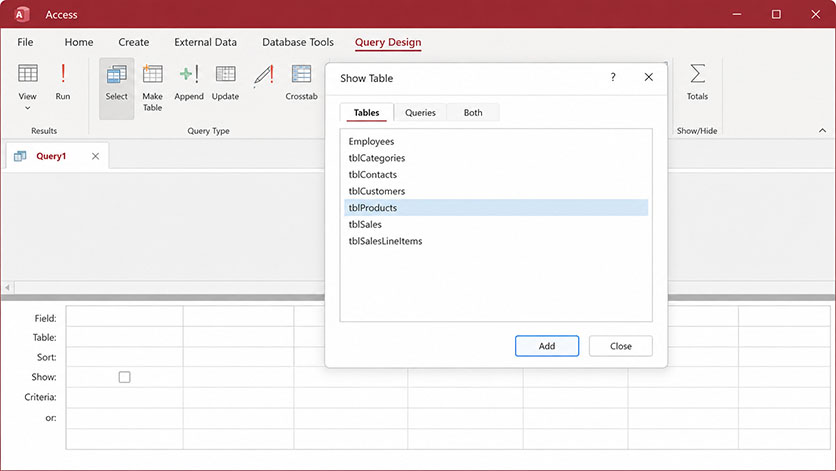
After you create tables and place data in them, you are ready to work with queries. In Microsoft Access 365, a typical query begins on the Create tab. In the Queries group, select Query Design. Access opens the Query Design workspace and displays the Show Table dialog box.
The Query Design workspace contains two major areas. The upper area shows the tables or queries added to the design surface. The lower design grid is where you select fields, define sorting, control whether fields appear, enter criteria, and configure totals or crosstab behavior when those options are enabled.
The Show Table dialog box lists the tables and queries available in the database. It floats above the Query Design window and lets you add the objects required for the query. In the example below, tblProducts is selected and ready to be added to the design surface.
Using the Show Table Dialog Box
The Show Table dialog box is used to add tables or saved queries to the query design. To add a table, select it and click Add, or double-click the table name. After the required objects have been added, close the dialog box and continue building the query in the design grid.
Once a table is added to the upper design area, its fields become available for selection. You can double-click fields to add them to the grid, drag fields into specific columns, or use the field drop-downs in the grid. Each selected field becomes part of the query definition.
Additional tables or queries can be added later. In Access 365, you can reopen the Show Table dialog box from the Query Design tools, or you can drag objects from the Navigation Pane into the upper design area. Removing a table from the design surface removes it only from the query design. It does not delete the table from the database.
A Practical Query Design Workflow
A reliable query design workflow begins with a business question. For example, you may want to find active customers, summarize hours by project, identify projects with no related time records, or calculate monthly sales by product category. Once the question is clear, the query type and design choices become easier to select.
For a retrieval question, begin with a Select Query. Add the necessary tables, confirm the joins, add the required fields, and apply criteria. For a summarization question, consider whether a Totals Query or Crosstab Query is more appropriate. For a bulk data operation, build and test a Select Query first, then convert it into the correct Action Query type.
Testing is the most important habit. Preview records before running Action Queries. Check join results before relying on reports. Confirm that aggregate functions summarize the correct fields. Verify that parameter prompts and criteria return the intended records. A query that runs successfully is not necessarily a query that answers the correct business question.
Final Summary
Refining Access queries means learning to control how data is selected, filtered, joined, formatted, summarized, and modified. This module started with basic filtering and moved through parameter prompts, multiple criteria, field properties, indexes, joins, query types, action queries, totals queries, and crosstab queries.
These skills are connected. Filters and criteria define which records qualify. Joins define how related tables contribute records. Field properties control how values appear. Indexes improve query performance. Query types determine whether Access retrieves records, summarizes records, creates a table, appends records, updates records, deletes records, or displays a cross-tabulation.
As you continue using Access, treat queries as reusable database objects rather than one-time searches. A well-designed query can become the record source for a form, the foundation for a report, the input for another query, or the controlled mechanism for a bulk operation. The better your queries are, the more useful and reliable your Access database becomes.
UsingTotal CrosstabQueries - Quiz
UsingTotal CrosstabQueries - Quiz