| Lesson 4 | The Simple Query Wizard |
| Objective | Create a query with the Simple Query Wizard. |
Create a Query with the Simple Query Wizard in Microsoft Access 365
The Simple Query Wizard in Microsoft Access 365 provides a guided way to build queries quickly—especially when you need to pull data from multiple tables or create grouped and summarized results. While Query Design view offers complete control, the wizard is ideal for new users and for tasks that involve summary calculations or fast prototyping.
In this lesson, you will learn how to create a summary query that calculates the total hours worked per project.
Understanding the Simple Query Wizard
The wizard walks through a sequence of steps:
- Selecting your data source (tables or existing queries)
- Choosing fields to include
- Choosing whether to build a detail or summary query
- Naming and opening the completed query
Once the wizard finishes, you may refine the query further in Design view. The wizard cannot be used to modify an existing query—only to create a new one.
Launching the Simple Query Wizard
- Open your Access database and select Queries in the Navigation Pane. Choose Create > Query Wizard, then select Simple Query Wizard.
- The wizard begins by asking which fields you want to include. For this exercise, we want to answer the question: “How many hours have been worked on each project?” This requires two fields: - Hours Worked (from the Hours table) - Project Description (from the Projects table)
- From the Table/Query dropdown, select Hours. In the Available Fields list, double-click Hours Worked to move it into Selected Fields.
- Change the Table/Query dropdown to Projects. Double-click Project Description to add it to Selected Fields.
- Click Next to continue.
-
Choose the type of query:
- Detail — shows each individual record
- Summary — groups data and performs calculations
- Click Summary Options. Access displays calculation choices for numeric fields. Check Sum for Hours Worked. You may also optionally choose Count, which counts records within each project group.
- Click OK, then click Next.
- Enter a descriptive name for your query: Hours by Project Keep Open the query to view information selected, then click Finish.
- The resulting datasheet displays one row per project. The wizard creates a calculated field named SumOfHours showing the total hours worked for each project.
Editing the Query in Design View
The Simple Query Wizard cannot be reopened for editing. If you need to apply criteria, adjust grouping, modify joins, or add new fields:
- Right-click the query in the Navigation Pane
- Select Design View
Design View reveals the underlying structure of the query—tables, joins, fields, grouping levels, and summary operations—allowing precise tuning beyond what the wizard offers.
Why Queries Matter
Queries allow you to ask meaningful questions about your data and retrieve only the records relevant to your task. They help transform raw information into structured insight. Whether evaluating student test performance, attendance patterns, or project hours, queries allow you to produce targeted, actionable datasets called dynasets—dynamic sets of returned records.
Creating a Simple Query (Step-by-Step)
- Select Queries in the Navigation Pane and click New.
-
Choose Simple Query Wizard and click OK.
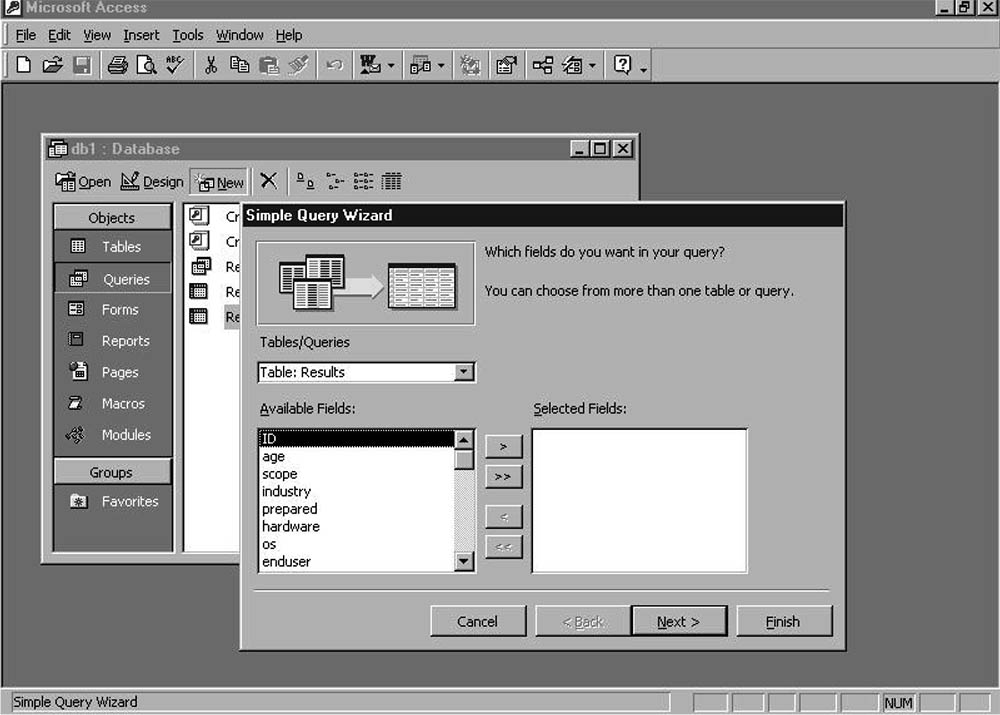
Simple Query WizardSimple Query Wizard interface, modernized for Access 365: - Table/Query dropdown (Results) - Available Fields list (ID, age, scope, industry, prepared, hardware, os, enduser) - Move buttons: Add >, Add All >>, Remove <, Remove All << - Selected Fields list (initially empty) - Navigation buttons: Cancel, Back, Next, Finish - Select the fields you want included in the query and click the > button to add them.
- Click Next twice to continue.
- Click Finish to create and open your query.
Simple Query Wizard - Exercise
Simple Query Wizard - Exercise